
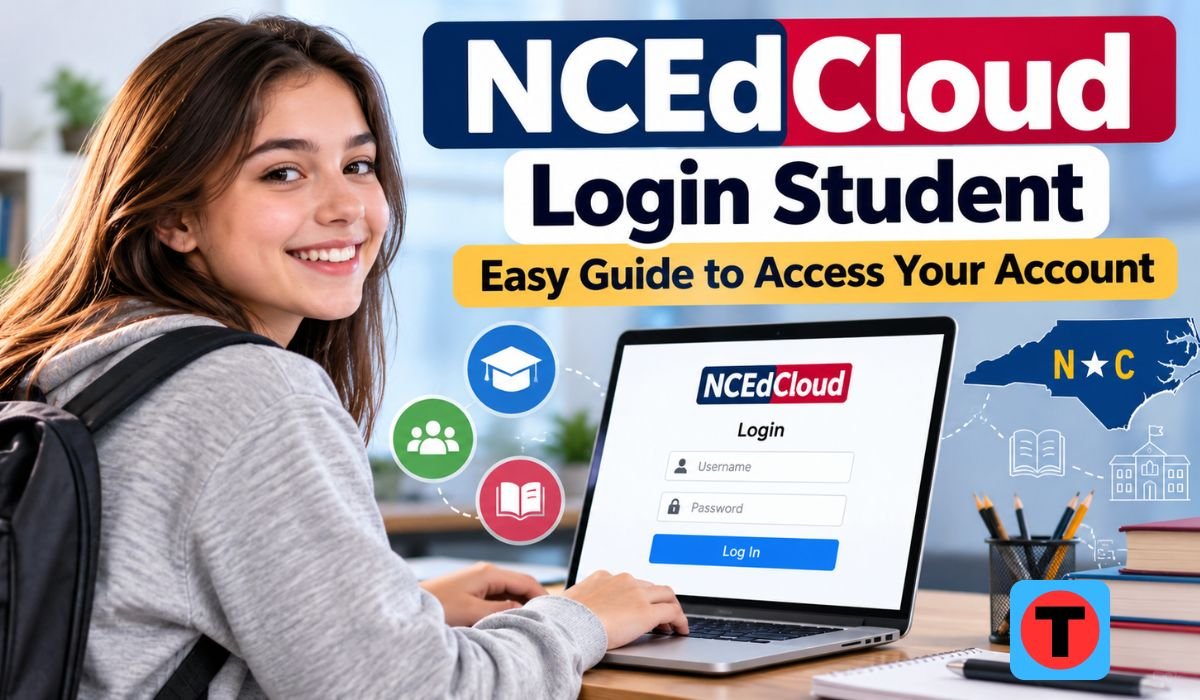
Accessing school resources online should be simple, but forgotten passwords, unfamiliar login pages, and account problems can sometimes make it frustrating. That’s where NCEdCloud Login Student comes in. This secure platform helps North Carolina public school students access approved educational applications using their assigned school accounts.
Whether you’re signing in for the first time, helping a younger child use a QR badge, or trying to recover a forgotten password, understanding how NCEdCloud Login Student works can save time and confusion.
This guide explains the student login process, account claiming, password recovery, common errors, and important information for 2026. You’ll also learn how to access school applications safely and when to contact your school’s technology support team.
What Is NCEdCloud and How Does It Work?
NCEdCloud, commonly known as North Carolina Education Cloud, provides Identity and Access Management services for North Carolina’s K–12 public education system. It allows authorized students, teachers, and school employees to access connected educational resources through a centrally managed account.
Instead of remembering separate login details for every school application, students can use NCEdCloud to reach services assigned to them. The platform verifies their identity and displays available resources in an Applications area.
However, NCEdCloud isn’t a learning application itself. It doesn’t directly replace classroom software, digital assignments, or student information systems. Its main purpose is to manage identities and provide secure access to connected services.
Schools also control which applications students can use. That’s why two students from different districts may see different resources after signing in.
NCEdCloud Quick Information
| Information | Details |
|---|---|
| Platform Name | NCEdCloud |
| Common Full Name | North Carolina Education Cloud |
| Service Type | Identity and Access Management |
| Primary Purpose | Secure Access to Educational Applications |
| Main Users | Students, Teachers, and School Staff |
| Education Level | K–12 Public Education |
| Location | North Carolina, United States |
| Official Login Portal | my.ncedcloud.org |
| Login Method | Assigned Username and Password |
| Main Dashboard | Applications Area |
| Account Management | School and District Managed |
| Student Account Claiming | Available According to Grade and Local Policy |
| Elementary Student Access | School-Issued Credentials or QR Badges |
| QR Badge Eligibility | Generally PK–5, Subject to Local Policy |
| Password Recovery | Approved Recovery Options or School Support |
| Employee MFA Requirement | Mandatory Statewide From July 2026 |
| Mobile Access | Through Compatible Web Browsers |
| Technical Assistance | Local School Technology Support |
How to Access the Official NCEdCloud Student Login Portal
The official NCEdCloud login portal is my.ncedcloud.org. Students can open this address in a compatible browser on a school Chromebook, desktop computer, laptop, or another permitted device.
Before signing in, make sure you have the username and password provided by your school. Some younger students may use a QR badge instead of entering traditional credentials.
When the login page appears, enter your assigned username and select Go. The system will then request your password or guide you through the authentication method available for your account.
After successful authentication, the Applications area normally appears. From there, you can select the educational services your school has assigned.
Always check that you’re using the correct portal. Avoid unfamiliar websites asking for school passwords, especially pages reached through advertisements or unexpected messages.
NCEdCloud Login Student: Step-by-Step Sign-In Guide
The NCEdCloud Login Student process is designed to be straightforward once your account is active. Begin by opening the official portal in your browser and entering the username assigned by your school.
After selecting Go, enter your password carefully. Passwords are case-sensitive, so an accidental capital letter or incorrect character can prevent access.
If authentication succeeds, you’ll reach the Applications area, where connected school resources are displayed. Select the application you need and follow any additional instructions provided by that service.
First-time users may encounter a different process. Some students must claim their accounts before regular login becomes available, while others receive ready-to-use credentials directly from their schools.
If your school has provided specific instructions, follow those first. Local procedures may differ depending on your grade, district, and account configuration.
How to Claim Your NCEdCloud Student Account
Account claiming is the process of activating an identity that has already been created in NCEdCloud. It helps verify that the person requesting access is the correct student.
Students in grades six through twelve may be eligible to claim their accounts, depending on school policy. The process can require information such as a student identification number, grade level, birth date, and Public School Unit code.
When requested, a birth date may need to follow the YYYYMMDD format. Incorrect information can prevent successful verification.
After identity verification, eligible students may be asked to create a password and complete other required account setup steps.
Elementary students usually follow a different approach. Schools generally distribute their credentials directly rather than asking PK–5 students to complete the standard secondary-student claiming process.
If claiming fails, contact your teacher or school technology team. Repeatedly entering different personal information is unlikely to solve a problem involving school records or account status.
NCEdCloud Login for Elementary, Middle, and High School Students
Although NCEdCloud serves students across different grade levels, the login experience isn’t always identical.
Elementary students often receive school-managed credentials. Eligible younger learners may also use QR badges, allowing them to sign in without typing long usernames and passwords.
Middle school students generally use assigned login credentials and may have access to account claiming where their school permits it. As students become more familiar with online learning, they may also take greater responsibility for managing their passwords.
High school students commonly access their accounts independently. Their Applications area may contain resources related to coursework, assignments, and other school activities.
The important point is that access depends on local school procedures. Students should never assume that instructions intended for another grade level will work for their accounts.
How to Use NCEdCloud QR Code Login
QR badge login can make school technology much easier for younger children. Instead of typing a username and password, eligible students use a school-issued badge with the supported login process.
NCEdCloud supports QR badges for PK–5 students, although Public School Units can choose not to use them for particular grade levels.
Authorized teachers or school employees can generate and print these badges. Students should use them only according to their school’s instructions.
One important detail is that a password change may require a new QR badge. If a previously working badge suddenly fails, the issue may involve outdated badge information rather than a broken device.
Because QR badges provide account access, they should be protected like passwords. Students shouldn’t share badge images publicly or leave them where unauthorized people could use them.
How to Reset a Forgotten NCEdCloud Student Password
Forgetting a school password is common, especially after a holiday or extended break. Fortunately, students can usually get help through their school’s approved account-recovery process.
Start by checking whether your account offers an authorized password-recovery option. The available method depends on your grade level, account permissions, and local school configuration.
Some students may need assistance from a teacher or school technology employee. Authorized personnel can help with certain student account-management tasks.
If you cannot recover your password, contact your school’s support team rather than trying random passwords repeatedly.
After receiving a replacement password, store it securely and avoid sharing it with classmates. Never provide your credentials through an unexpected email, message, or unfamiliar website.
A password reset also won’t necessarily solve a missing-application problem. If you can already sign in, your school may need to review your application permissions instead.
Common NCEdCloud Student Login Problems and Solutions
Even a reliable school login system can occasionally produce errors. The easiest way to troubleshoot is to identify exactly where the process stops working.
An incorrect username or password may result from typing mistakes, outdated credentials, or an account issue. Verify your information before requesting additional assistance.
An “invalid request” message can appear when someone uses an outdated login bookmark or navigates backward through an authentication session. Returning to the main portal and beginning a fresh session may resolve it.
Account-claiming errors can involve incorrect identification details, incomplete school records, or an account that has already been claimed.
If the portal doesn’t load, check your internet connection and try reopening it in a current browser. When several students experience the same problem, a broader service issue may be involved.
For persistent errors, contact local school IT support. Include the error message and explain what happened, but never send your password.
How to Find and Open School Applications in NCEdCloud
After signing in, students normally reach the Applications area. This section displays connected resources available to their accounts.
The applications shown depend on factors such as school enrollment, assigned roles, district configuration, and system provisioning.
If an expected application is missing, don’t immediately assume your password is incorrect. Successfully reaching the Applications area usually means your NCEdCloud authentication has worked.
Instead, the missing resource may involve an application assignment or a delay in updating school information.
This distinction becomes particularly important when students change schools, enter a new grade, or receive updated schedules.
Your teacher or technology support team can determine whether the application should be available and investigate any access problem.
Can Students Access NCEdCloud on Mobile Phones and Chromebooks?
NCEdCloud is accessed through a web portal, making browser-based login possible on different types of devices.
School-issued Chromebooks are a common option because many students already use them for classroom activities. Students can open the official portal and sign in using their assigned credentials.
Access through a mobile phone or tablet may also be possible with a compatible browser. However, individual school applications may have additional device requirements.
For example, a connected learning resource might work better on a laptop than on a smaller phone screen.
Students should also follow their school’s technology policies when using personal devices. On shared computers, avoid saving passwords and sign out after completing schoolwork.
Is NCEdCloud Safe and Secure for Students?
NCEdCloud is designed around managed identities, authorized access, and account security. Rather than giving every student unrestricted access, it helps schools control which connected resources each user can open.
Its security functions include identity management, access controls, and account provisioning. These features help schools maintain appropriate access as students enroll, transfer, or leave.
However, technical safeguards work best when users follow safe habits.
Students should keep passwords private, protect QR badges, and avoid entering credentials on suspicious websites. Unexpected authentication requests or unfamiliar account activity should be reported to school technology staff.
For 2026, it’s also important to understand that statewide mandatory multi-factor authentication applies to employees. Students shouldn’t assume they must complete the same MFA process unless their school specifically requires it.
NCEdCloud vs. NCSIS: Understanding the Difference
NCEdCloud and NCSIS are related to North Carolina education, but they serve different purposes.
NCEdCloud focuses on identity verification and access to connected educational applications. NCSIS, the North Carolina Student Information System, manages student information and related school records.
North Carolina completed its statewide transition to Infinite Campus as the modernized NCSIS on July 1, 2025.
This change matters because older online guides may still describe PowerSchool as the current statewide student information system.
A student may access connected services through NCEdCloud, but that doesn’t mean NCEdCloud itself stores or manages every piece of information shown in those services.
Understanding the difference helps students and parents contact the right support team when something isn’t working.
Benefits of Using NCEdCloud for Students
One of NCEdCloud’s biggest advantages is convenience. Students can access multiple authorized school resources through a centrally managed identity instead of handling separate credentials for every connected service.
The system also supports consistent account management. When schools update student enrollment or access information, authorized applications can receive appropriate changes through managed provisioning processes.
For younger students, QR badges can reduce the frustration of typing complicated credentials.
Teachers and technology teams also benefit from centralized access management, which can make account administration more organized.
Still, the platform doesn’t guarantee that every school application will appear automatically. Available resources depend on school configuration and assigned permissions.
For students, the real benefit is a simpler and more organized way to reach the digital tools needed for learning.
Helpful NCEdCloud Tips and Important 2026 Updates
A few everyday habits can make NCEdCloud easier to use. Students should keep their login details secure, use the official portal, and ask for assistance when something unexpected happens.
Parents helping younger children should follow school instructions for passwords and QR badges. Shared devices should always be signed out after use.
An important platform update in 2026 concerns employee authentication. Statewide employee multi-factor authentication became mandatory on July 1, 2026. NCEdCloud also supports authentication technologies such as TOTP and WebAuthn for applicable accounts.
These changes strengthen employee account protection but shouldn’t be confused with universal student login requirements.
Another important development is North Carolina’s completed transition to Infinite Campus for its statewide student information system.
Students and families should therefore rely on current school guidance rather than older tutorials that may describe outdated account procedures or connected applications.
Final Thoughts
NCEdCloud Login Student provides North Carolina students with a practical way to access approved school resources through a secure, centrally managed account. Once students understand the correct login process, account claiming, and available support options, many common access problems become easier to resolve.
The most important thing is to follow your school’s instructions. Younger students may use QR badges, older students may have account-claiming options, and available applications can differ between schools.
As educational technology continues to evolve in 2026, NCEdCloud remains an important part of North Carolina’s digital learning environment. By protecting login information, using the official portal, and contacting school support when necessary, students can spend less time dealing with account problems and more time focusing on learning.
FAQs About NCEdCloud Login Student
What Is the Official NCEdCloud Student Login Website?
The official portal is my.ncedcloud.org. Students can use it to enter their assigned credentials and access educational applications authorized by their schools.
How Do I Log In to My NCEdCloud Student Account?
Open the official portal, enter your assigned username, select Go, and provide your password. After successful authentication, open the required application from the Applications area.
What Should I Do if I Forgot My NCEdCloud Password?
Use your school’s approved password-recovery method or contact a teacher or technology support employee. Recovery options depend on your account permissions and local school procedures.
Can Elementary Students Use NCEdCloud QR Codes?
Yes. NCEdCloud supports QR badges for eligible PK–5 students. However, individual school districts can choose not to offer this option for certain grade levels.
Can I Access NCEdCloud From Home?
Students can generally access the web portal from home using an internet connection and a compatible browser. However, individual applications may have additional access restrictions or school-specific requirements.
Why Are My School Applications Missing?
Missing applications can result from enrollment information, assigned permissions, provisioning delays, or local configuration. If you can log in successfully, ask your school to verify your application access.
Is NCEdCloud the Same as Infinite Campus?
No. NCEdCloud manages identities and access, while Infinite Campus serves as North Carolina’s modernized statewide student information system through NCSIS.
Who Should I Contact for NCEdCloud Login Help?
Start with your teacher or school’s technology support team. They can help identify account problems, password issues, incorrect student information, and missing application permissions.
Learn more and explore exciting content on: Girl Lips Left: Meaning, Makeup Styles, and Beauty Inspiration











Leave a Reply